How to Build Consistency and Continuity Across AI-Generated Video Segments

While modern AI video models can produce impressive cinematic visuals, most are still limited to short clips—typically around 30 seconds max. Because of this, maintaining visual consistency and narrative continuity across separately generated clips remains one of the biggest challenges in AI filmmaking.
The real challenge is not generating a good individual clip. It is connecting multiple independently generated clips into a continuous film while maintaining visual and narrative consistency.
A common approach is to build a unified asset library, generate many variations, and select clips that happen to match. This can work, but it also means relying heavily on repeated generation and selection.
A more systematic approach is to control continuity throughout the entire filmmaking workflow — from asset preparation and shot planning to generation, reference management, iteration, and final editing.
The key is to make sure that the necessary information is continuously transferred from one segment to the next.
For the overall AI filmmaking workflow, see: From Story to Film: Building Your Practical AI Filmmaking System
This article focuses specifically on how to maintain continuity between AI-generated video segments, covering practical techniques applied across different stages of the AI filmmaking process.
1. Build a Consistent Asset Library
The first step is to establish a unified asset library for the entire film.
This can include:
- Characters
- Locations
- Props
Once an asset is established, it should remain consistent throughout the story.
However, consistency does not mean having only one reference image for each asset.
A character may have multiple approved states:
- Different clothing
- Different hairstyles
- Injuries
- Different emotional states
Locations can also have different states:
- Day / night
- Different weather
- Different lighting
- Damaged or changed environments
The plot determines which version of the asset should be used at each point.
The asset library therefore acts as the persistent visual memory of the film.
2. Use Shot Language to Refine Continuity Between Clips
Instead of dividing the story into video segments first and then designing shots independently inside each segment, I plan the overall shot list for the entire narrative upfront. The following steps show how to build seamless continuity between video segments using cinematic shot language:
2.1 Create the Overall Storyboard
Start with a complete storyboard covering the entire story.
At this stage, the shot descriptions do not need to be extremely detailed.
The main purpose is to establish:
- The complete shot sequence
- The visual progression
- Character actions
- Camera perspective
- Major transitions
The goal is to understand the entire visual sequence before worrying about generation limits.
2.2 Divide the Master Storyboard into Storyboard Segments
Once the overall shot list is established, divide it into storyboard segments according to the needs of video generation.
The boundaries can be based on:
- Maximum generation duration, such as 15s or 30s
- Natural editing points
- Changes of location
- Natural transitions between shots
This means the storyboard segments are created from the master storyboard, rather than from separate narrative paragraphs.
By planning the shots first and dividing them into storyboard segments afterward, we can make sure that continuity between segments exists at the level of shot language, rather than relying only on continuity of story content.
2.3 Detail the Shots Inside Each Segment
After the segments are defined, develop the shots within each segment in more detail.
For example:
- Character emotion
- Character movement
- Camera movement
- Framing
- Composition
- Environment
- Lighting
- Interaction between characters
At this stage, each segment becomes a detailed generation plan.
2.4 Check and Refine Shot Continuity Between Segments
The boundaries between two generated segments deserve special attention.
After the detailed shots have been designed, check again whether the shot language between segments is continuous and refine the final video‑generation prompts accordingly.
For example, if a character is walking forward at the end of one segment, the next shot can smoothly continue the movement—such as from a slightly different angle or distance—rather than attempting to reproduce the exact same frame.
This is where cinematic language can solve continuity problems without requiring additional technical references.
Through the structured workflow above, AI can automatically transform a complete narrative text into segment-by-segment video generation prompts that maintain seamless continuity at the cinematic shot level.
2.5 A Practical Shot‑Language Example (TikFilmer Workflow Output)
Below is a real example generated by the TikFilmer AI‑filmmaking workflow. This is a clip case for a dinosaur educational science film; the prompts were automatically generated by TikFilmer. This method can also be applied to other scenarios. Two independent video segments are connected purely by shot‑language design based on a unified asset library, without passing frame references between generations. We focus on boundary frames, generation prompts and the final stitched output.
Clip Boundary Comparison
Segment 1 — Last Frame (End of Confrontation)
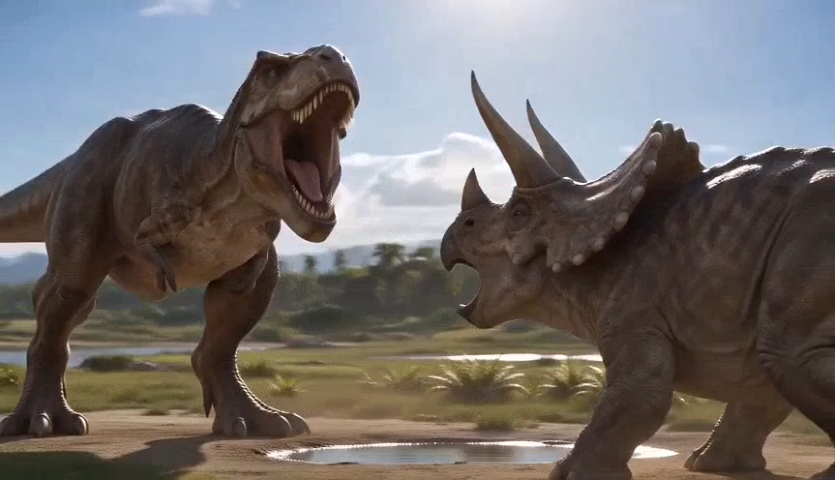
Final shot prompt of Segment 1
Segment 2 — First Frame (Opening Scene)
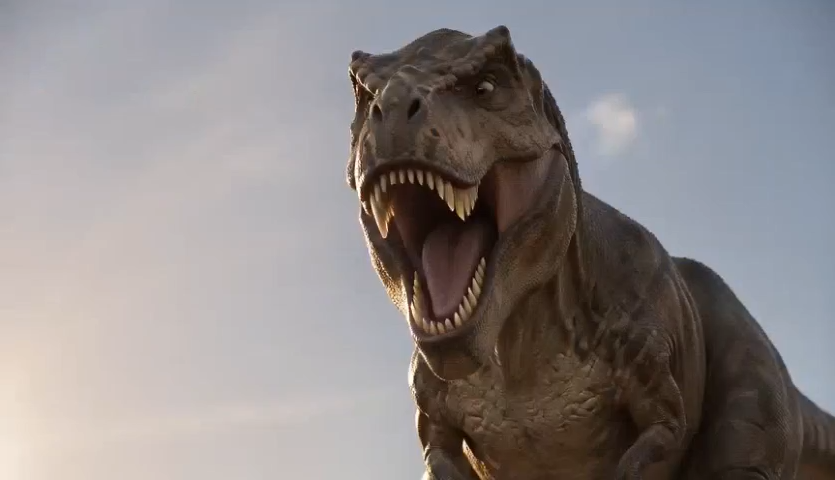
Opening shot prompt of Segment 2
Final Direct‑Stitched Result (Zero Post‑Processing)
Key Observations
The two independently‑generated segments achieve reasonable narrative and visual coherence purely through pre‑planned shot‑language. Minor audio discontinuity remains, which can be fixed in later post‑production steps using J‑cut / L‑cut audio editing techniques covered in section 5.
How Shot‑Language Delivers Continuity
- Segment 1 ends on a roaring Tyrannosaurus Rex; Segment 2 opens by continuing that same creature’s performance, shifting its emotional beat from rage to curiosity.
- Consistent camera‑language & framing logic: Segment 1 uses a medium‑wide two‑shot to establish the predator‑prey standoff; Segment 2 switches to a medium shot with crane tilt‑down. This shot‑size shift guides the audience’s gaze from large‑scale confrontation down to small‑scale detail, creating natural visual motivation for the edit cut.
- Shared environment asset: the Cretaceous Plains setting persists across both generated segments, anchoring spatial continuity.
- Cinematic framing and shot‑size design guide audience attention to maintain smooth story flow.
This demonstrates shot‑level pre‑planning can establish continuity even without passing cross‑segment reference‑images during video generation.
3. Use Reference Images to Transfer Information Between Segments
Shot planning is not always enough. When the next generation needs precise information from the previous segment, reference images can be used to explicitly transfer that information.
Reference images can take many different forms, and they should be selected according to the needs of each situation rather than used in exactly the same way every time.
For example, some segments can already be connected effectively through shot language. If an establishing shot or another transitional shot naturally moves the story from one location to another, there may be no need to use the last frame of the previous video as a reference.
On the other hand, if the previous segment contains a dragon, a character, and a complex multi‑character scene, it may be more useful to provide a reference showing the relative scale of the dragon and character, or a spatial reference showing where the characters are positioned within the scene.
Below are several commonly useful types of reference images.
3.1 Use the Last Frame of the Previous Segment
A common method is to extract the last frame of the previous video and use it as a reference for the next generation.
This can transfer information such as:
- Character appearance
- Character position
- Environment
- Lighting
- Composition
- Ongoing action
This is particularly useful when the next segment needs to continue an action directly from the previous one.
3.2 Use Object Scale Reference Images
AI models can sometimes have difficulty maintaining the relative scale of objects across independently generated clips.
This is especially noticeable with:
- Humans and creatures
- Buildings and characters
- Large fantasy objects
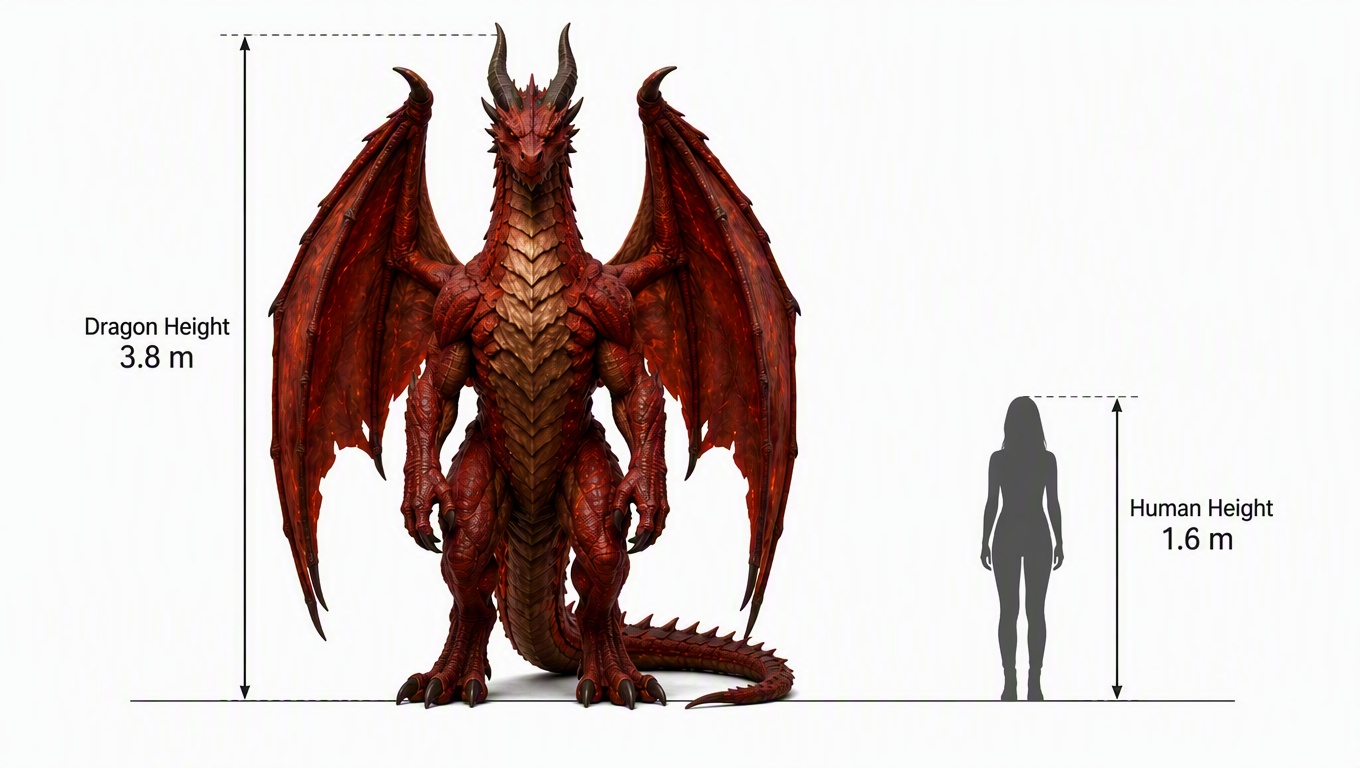
For example, if a dragon is supposed to be 3 times the height of a human, this relationship may change between generations.
A dedicated scale reference image can explicitly communicate the intended relationship.
Scale Reference Practical Example
Below is a dragon‑human scale reference diagram. This reference image is fed into different video generation jobs to enforce consistent size proportions across separate video segments.
3.3 Use Spatial Relationship Reference Images
Sometimes the important information is not the appearance of the characters, but where they are located relative to each other.
For example:
- Character A is standing to the left of Character B
- The dragon is behind the character
- Multiple characters occupy different positions within the same space
One useful approach is to create a top‑down spatial reference image and label the different characters or assets.
These labels can then be explained in the prompt so that the model understands which reference corresponds to which asset.
Spatial Reference Workflow Example
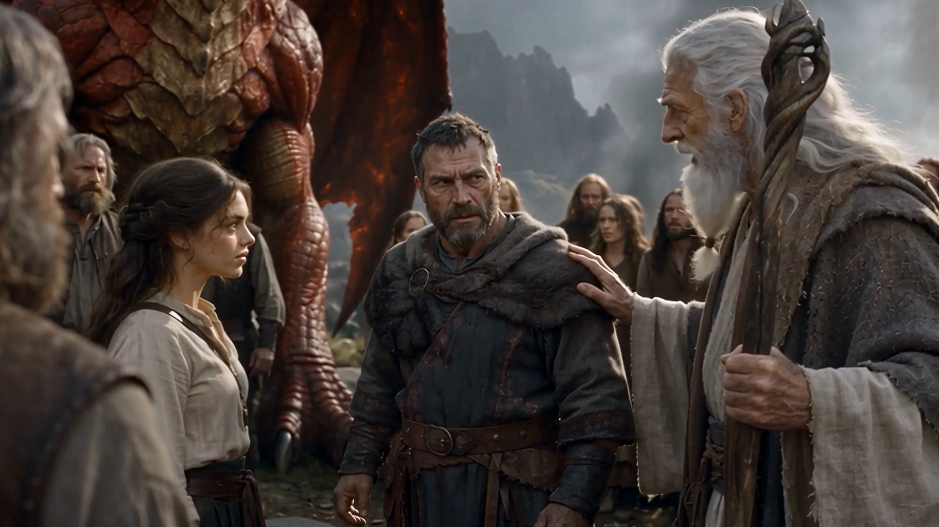
End‑to‑end workflow to produce a spatial reference: source video frame → conversion prompt → annotated top‑down spatial diagram.
Step1: Source Video Frame
Step2: Conversion Prompt
Step3: Generated Top‑Down Spatial Reference
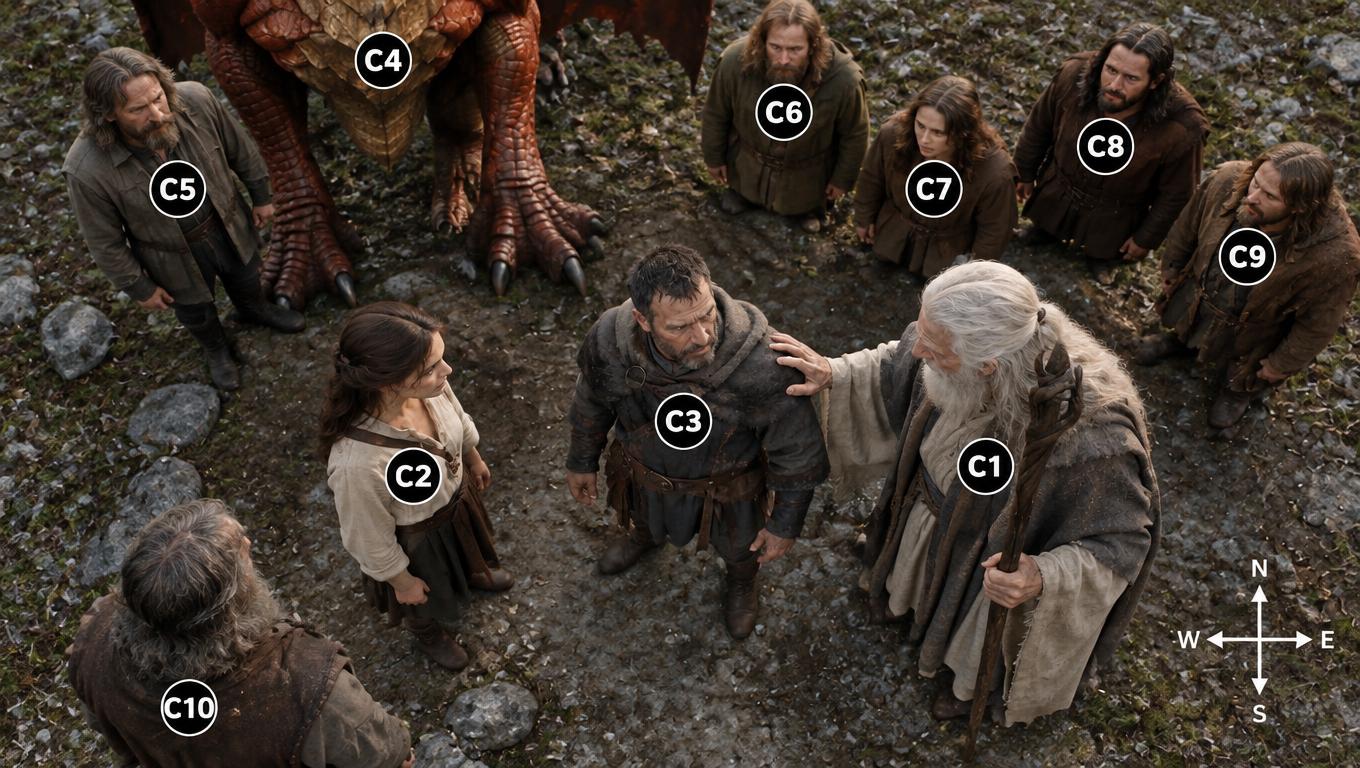
This top-down diagram is then used as a visual reference for generating subsequent video segments, with character-to-badge mappings defined directly in the generation prompt.
4. Generate, Inspect, and Adapt
AI video generation is not always a process where everything should be decided before generating the first clip.
Sometimes the generated result itself provides important information for the next segment.
The workflow can therefore become: Generate → Inspect → Extract → Adapt → Generate
For example, after generating Segment 1, a frame from the video — not necessarily the last frame — may contain useful information for the next segment, such as:
- The spatial relationship between characters
- The relative scale of objects
- An unexpected but useful visual moment
- Complex environmental details
Instead of ignoring these details, they can become references for the next generation.
You can extract useful frames from the previous segment, process them into the types of reference images described in Section 3, and then use those references for the next segment.
This creates an iterative workflow:
There is another important benefit to this approach.
AI video models naturally try to maintain internal consistency within the video they generate. If you have not yet decided exactly what a particular environment or asset should look like, you do not always need to define everything in advance.
Instead, you can sometimes let the AI interpret the prompt and generate the scene without a reference image.
If the result works well, extract useful frames from the generated video and turn them into reference images. These can then be processed and added back into the asset library for use in later segments.
In this way, the generated video itself can become a source of new assets and references.
The workflow becomes: Generate → Discover → Extract → Refine → Add to Asset Library → Reuse
This makes the filmmaking process less rigid and allows the visual world of the film to evolve naturally during production.
5. Use Post‑Production to Hide and Improve Generation Boundaries
Continuity does not end when the video generation is finished.
Editing is another important tool for connecting independently generated clips.
Even when two clips cannot be perfectly matched at the generation level, editing techniques can make the transition feel much more natural.
5.1 Use J‑Cuts and L‑Cuts
A J‑cut allows the audio from the next shot to begin before the visual cut.
An L‑cut allows the audio from the previous shot to continue after the visual cut.
These techniques can reduce the feeling that two independently generated clips are simply being placed next to each other.
The sound therefore creates continuity even when the visuals change.
5.2 Change the Order of Generated Shots
The order in which clips are generated does not always have to be the final editing order.
For example, suppose several generated clips contain:
- A character walking
- A close‑up reaction
- An environmental shot
- A wide establishing shot
The clips can be rearranged during editing to create a more coherent sequence.
The best generation order and the best editing order are not necessarily the same.
5.3 Use Cutaways and Reaction Shots
When two clips cannot be connected directly, an intermediate shot can hide the discontinuity.
Instead of forcing Clip A and Clip B to match perfectly, the edit provides visual space between them.
This is another example of solving a generation problem through filmmaking language.
6. Further Refine the Result When Necessary
Sometimes the result still does not feel right after generation and editing. In that case, there are two additional options: add new shots or modify an existing shot with a video model.
6.1 Add Additional Shot Segments
If two shots still do not connect naturally, you do not always need to regenerate both of them.
Instead, consider adding another shot between them.
The additional shot can provide a new visual transition, reveal an environment, show a character's reaction, or simply give the audience enough visual information to accept the change.
This can be much more practical than trying to force two existing clips to match perfectly.
6.2 Modify Part of an Existing Video Shot
If a generated shot is already good overall but contains a local problem, it may not be necessary to regenerate the entire shot.
A video editing or video‑generation model can sometimes be used to modify a specific part of the shot while preserving the rest.
For example, you may want to adjust:
- A character's appearance
- An object in the scene
- A local action
- Part of the environment
- A continuity issue near a shot boundary
This provides another layer of control between generation and editing.
The overall process can therefore become: Generate → Inspect → Edit → Add or Modify → Refine
The goal is not to regenerate everything whenever something goes wrong. Instead, use the smallest intervention that solves the problem.
7. Continuity Should Be Controlled Throughout the Entire Workflow
The techniques above happen at different stages of filmmaking:
| Stage | Continuity Method |
|---|---|
| Pre‑production | Build a consistent asset library |
| Storyboarding | Plan the complete shot sequence |
| Segmentation | Divide the storyboard into practical generation segments |
| Shot design | Design and refine the boundaries between segments |
| Generation | Use appropriate references |
| Reference management | Transfer frames, scale, and spatial relationships |
| Iteration | Inspect each result and adapt the next generation |
| Post‑production | Use editing, J‑cuts, L‑cuts, cutaways, and shot rearrangement |
| Further refinement | Add new shots or modify existing video locally |
This is the main idea:
AI video continuity should not be solved by one technique. It should be controlled throughout the entire filmmaking workflow.
The asset library controls what exists.
The storyboard controls what happens and in what visual sequence.
Shot language controls how shots connect.
Reference images transfer visual and spatial information between generations.
Iteration allows the actual generated result to inform the next generation.
Editing provides another layer of control after generation.
Additional shots and local video modifications provide another layer of refinement when the result is still not satisfactory.
When these techniques work together, we do not have to rely entirely on generating hundreds of variations and hoping that enough clips happen to match.
Instead, continuity becomes something that can be designed, transferred, and progressively refined throughout the filmmaking process.
And ultimately, the goal is not simply to generate a collection of impressive AI video clips, but rather to produce a sequence of clips that form a cohesive, complete narrative and belong to the same film.