How to Make an AI Short Film That Breathes: One Story, Two Cinematic Styles

You already see the film in your head. Here is how to turn a story into a scene plan and a shot list in your own style, shown with one wuxia sword fight shot two ways: a blood feud and a lost love.
If you write stories, you already know how your film should feel. You can picture the long silence before the first strike, the quick cuts when the swords meet, the look back at the end. The hard part has never been the idea. It is turning that idea into something an AI video model can shoot: which scenes, how long each one runs, which shots, and where to cut.
That translation is what a director and an editor do, and it is what TikFilmer's new story-to-film workflow does for you. It breaks your story into scenes, builds a shot list for each one, and lets you decide how every scene is shot. You keep the vision. The workflow does the planning.
Why Most AI Short Films Feel Flat
AI video models like Seedance, Kling, Wan and MiniMax H3 can now generate stunning cinematic shots, but only a few seconds at a time. So if you want to make an AI short film from a story, the story has to be split into clips first. Until now, many creators split a story the simple way: fill each clip up to the model's maximum length, then move on.
It worked, but every film had the same heartbeat. A quiet goodbye got the same 15 seconds as a sword fight. Cuts landed in the middle of a line or a punch. Nothing ever slowed down, so nothing ever landed.
An editor would never cut a film that way. Rhythm is a choice. Some moments need ten cuts in ten seconds. Others need one shot that holds until it hurts.
From Story to Shot List: Cutting Like a Film Editor
The new segmentation follows three steps a film editor would recognise:
- Split by scene, not by seconds. The story is first broken into scenes by time and place, and each scene gets time according to its weight in the story.
- Choose how each scene is shot. Every scene gets a shot scheme that sets its style, pacing and shot length.
- Cut only where a cut belongs. A scene longer than the model's limit is split into clips only at shot boundaries, preferring reaction shots, establishing shots, shot-size changes and cuts on action. It never cuts mid-line or in the middle of a continuous camera move.
Case Study: One AI Sword Fight, Two Cinematic Styles
To test it, I wrote a short wuxia scene. A swordsman climbs Mount Hua before dawn. A swordswoman waits at the summit. They fight until his blade stops at her throat on the edge of a cliff, and then he walks away. At dusk she is still there, alone.
The script only describes what they do, never why. Then I made two versions with the same story, characters, asset library and 60-second length. The only thing I wrote differently was one paragraph of creative vision: a blood feud in one, former lovers in the other. From that, the AI chose a different shot scheme for almost every scene. I changed just one scene to a custom scheme of my own.
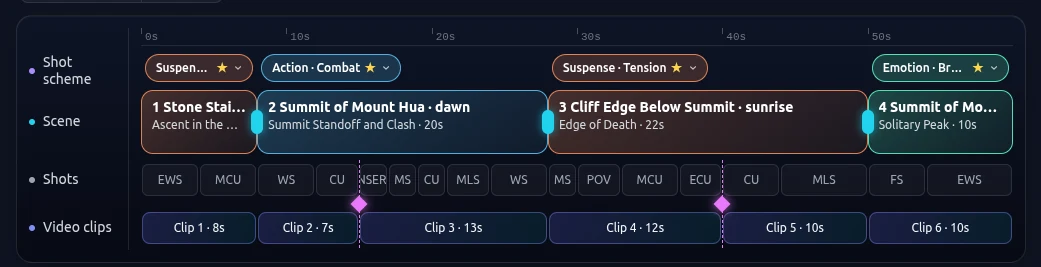
| Scene | Blood Feud | Old Flame |
|---|---|---|
| 1. The climb (stone stairway, pre-dawn) | Suspense ★ · 8s · 2 shots | Breathing room ★ · 8s · 2 shots |
| 2. Standoff and fight (summit, dawn) | Action ★ · 20s · 7 shots | Suspense ★ · 16s · 4 shots |
| 3. Blade at the throat (cliff edge, sunrise) | Suspense ★ · 22s · 6 shots | Romance · Unspoken (custom) · 22s · 4 shots |
| 4. Alone (summit, dusk) | Breathing room ★ · 10s · 2 shots | Breathing room ★ · 14s · 2 shots |
| Total | 17 shots · 6 clips | 12 shots · 6 clips |
★ = the scheme the AI recommended for that scene.
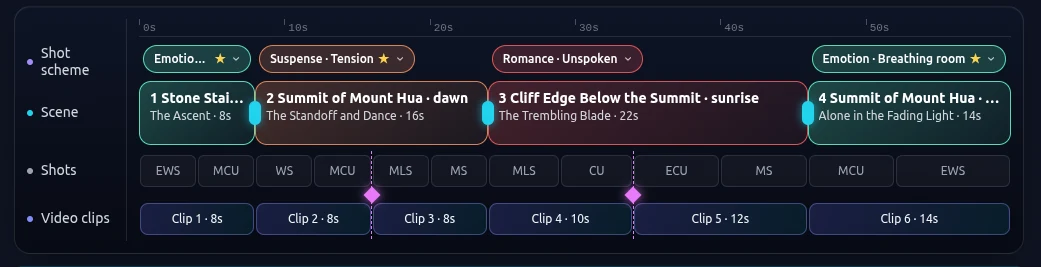
You can see the difference before you press play. Blood Feud packs 17 shots into 60 seconds. The fight alone is 7 shots in 20 seconds: wide, close-up, insert, close-up again, always moving. Old Flame tells the same story in 12 shots. Its fight is 4 shots in 16 seconds, the cliff edge holds 4 long shots across 22 seconds, and the last scene gets 14 seconds instead of 10 to let the silence land.
Same action, same characters, two different stories. The shot plan did the storytelling.
You Direct, the Workflow Plans: What's New in TikFilmer
Plan while you build the asset library. When you extract characters, locations and props, TikFilmer plans the scenes and shots at the same time. By the time your assets are ready, so is the plan.
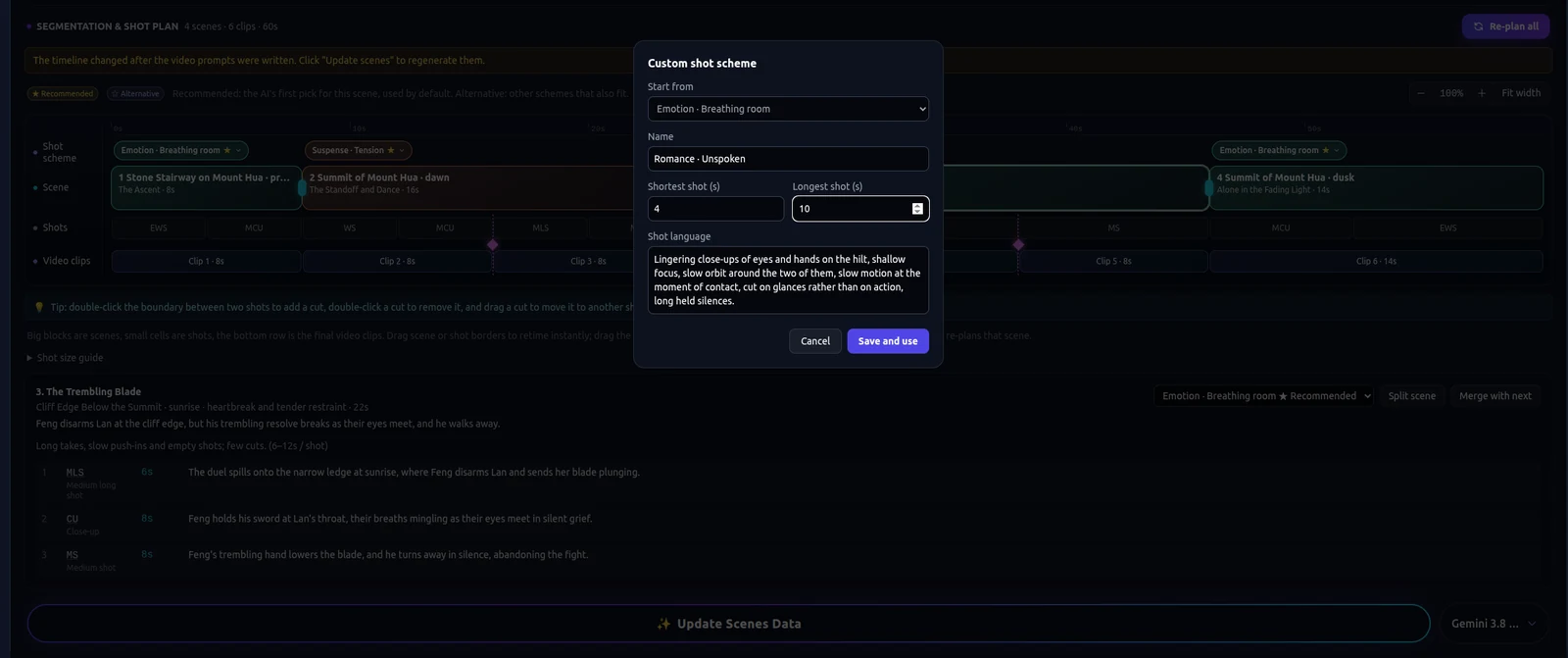
Shot schemes, recommended or your own. There are eight built-in schemes: Dialogue, Breathing room, Action, Suspense, Epic, Comedy, Montage and One take. For each scene the AI marks its first pick with ★ Recommended and uses it by default. Other good fits are marked ☆ Alternative. You can also write a custom scheme with its own shot lengths and shot language, which is how I made “Romance · Unspoken”.
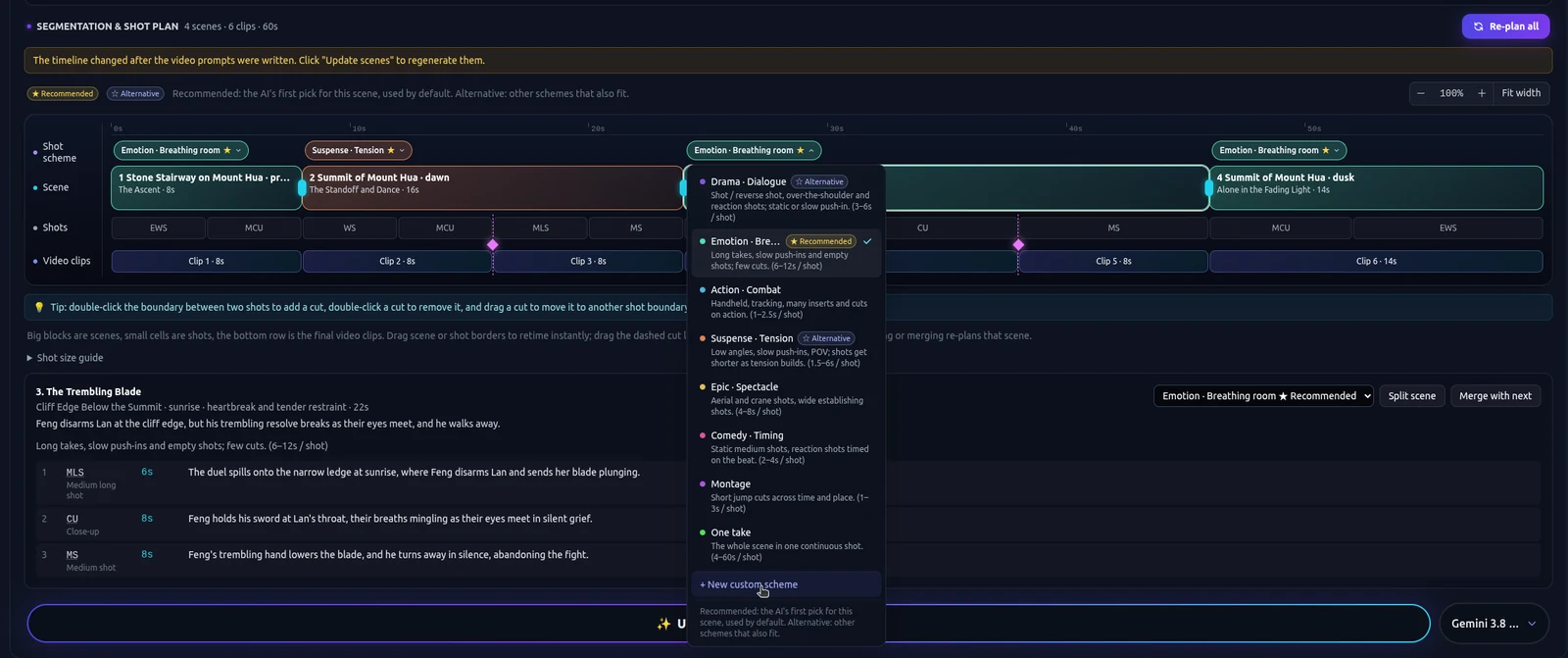
A four-row timeline. The plan is shown as a timeline with four rows: Shot scheme, Scene, Shots and Video clips. Hover any row header to see what it means. Shots are labelled by shot size, such as WS for wide shot or MCU for medium close-up. A built-in shot size guide explains each abbreviation, so you don't need film school to read it.
Edit it like an editing timeline. Drag a border to retime scenes and shots instantly. Double-click a shot boundary to add a cut, double-click a cut to remove it, or drag it to another boundary. Split or merge scenes, or switch a scheme right on the timeline; only that scene is re-planned. Zoom with the buttons or Ctrl/⌘ + mouse wheel.
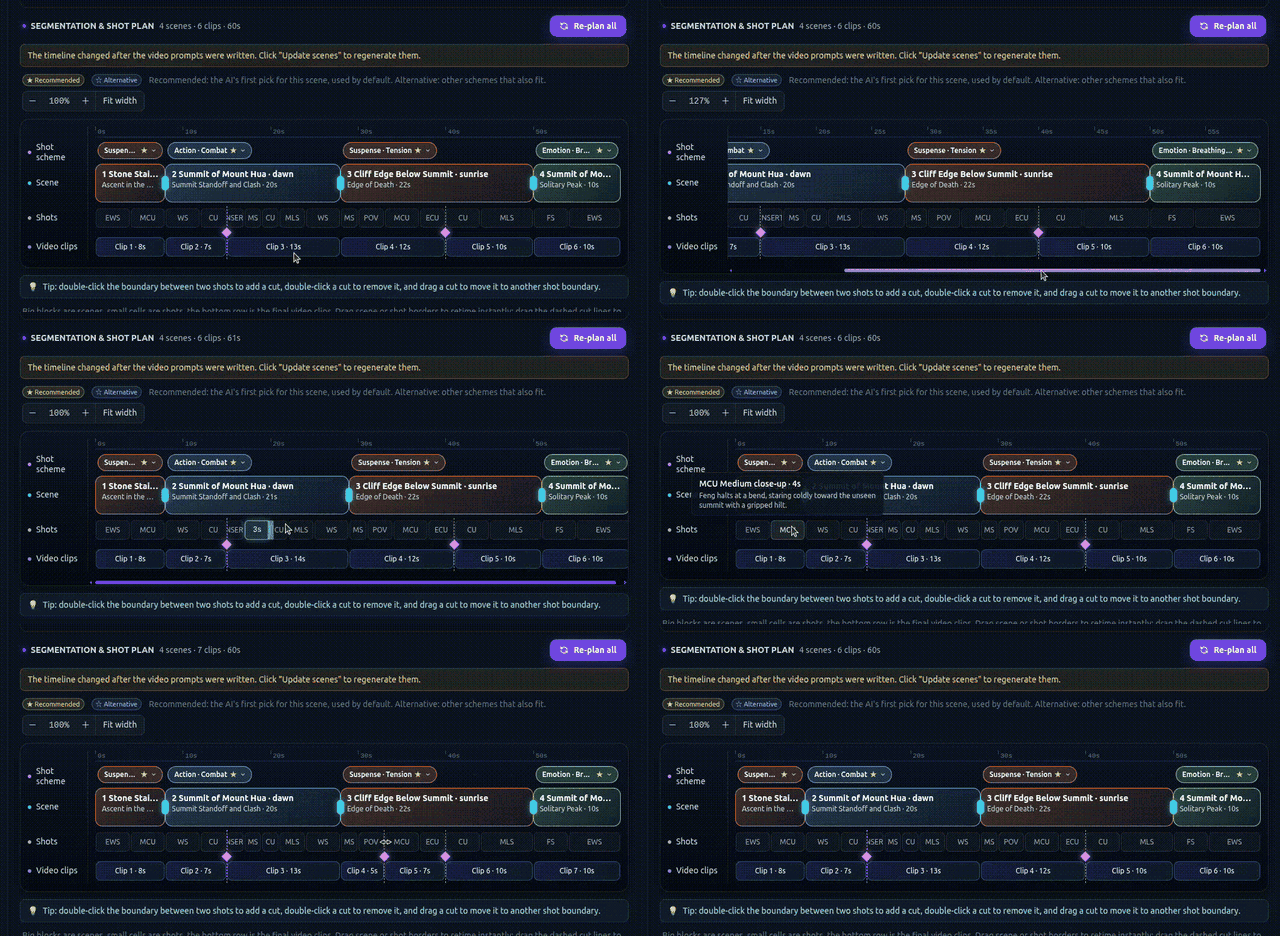
Whole-second clips that match the model. Every clip is a whole number of seconds. Select a clip and the video model's duration follows it, and changing the duration in the model panel writes back to the clip.
Prompts written with the whole story in mind. When you generate scene data, all video prompts are written in one pass with the full story as context, not one scene at a time. Each clip knows what came before and what comes next.
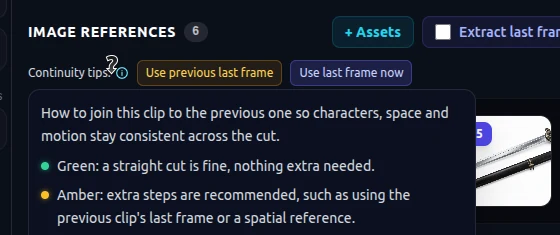
Continuity tips on every clip. Each clip shows how it should join the previous one. Green means a straight cut is fine. Amber means it needs help, such as the previous clip's last frame, a spatial reference or a scale reference. For the full method, see my guide on building consistency and continuity across AI-generated video segments.
Old projects still open as before. If a project has prompts but no plan yet, TikFilmer shows “not generated” and you can create one when you want it.
Give Your Story Room to Breathe
AI can already generate beautiful shots. What makes a film is the plan behind them: how the story is divided into scenes, how each scene is covered, how long to stay on each shot and where to cut. That is directing. With this workflow you make those choices scene by scene, and the same story can become a thriller, a romance or anything in between.
Want to make your own AI short film from a story? Try it at TikFilmer.
More articles
View all articles →
How to Build Consistency and Continuity Across AI‑Generated Video Segments
AI video models can now generate impressive cinematic shots, but maintaining visual consistency and narrative continuity across independently‑produced clips remains one of the core challenges for AI filmmaking.
From Story to Film: Building Your Practical AI Filmmaking System
How I built a practical workflow for turning a story into a coherent AI short film
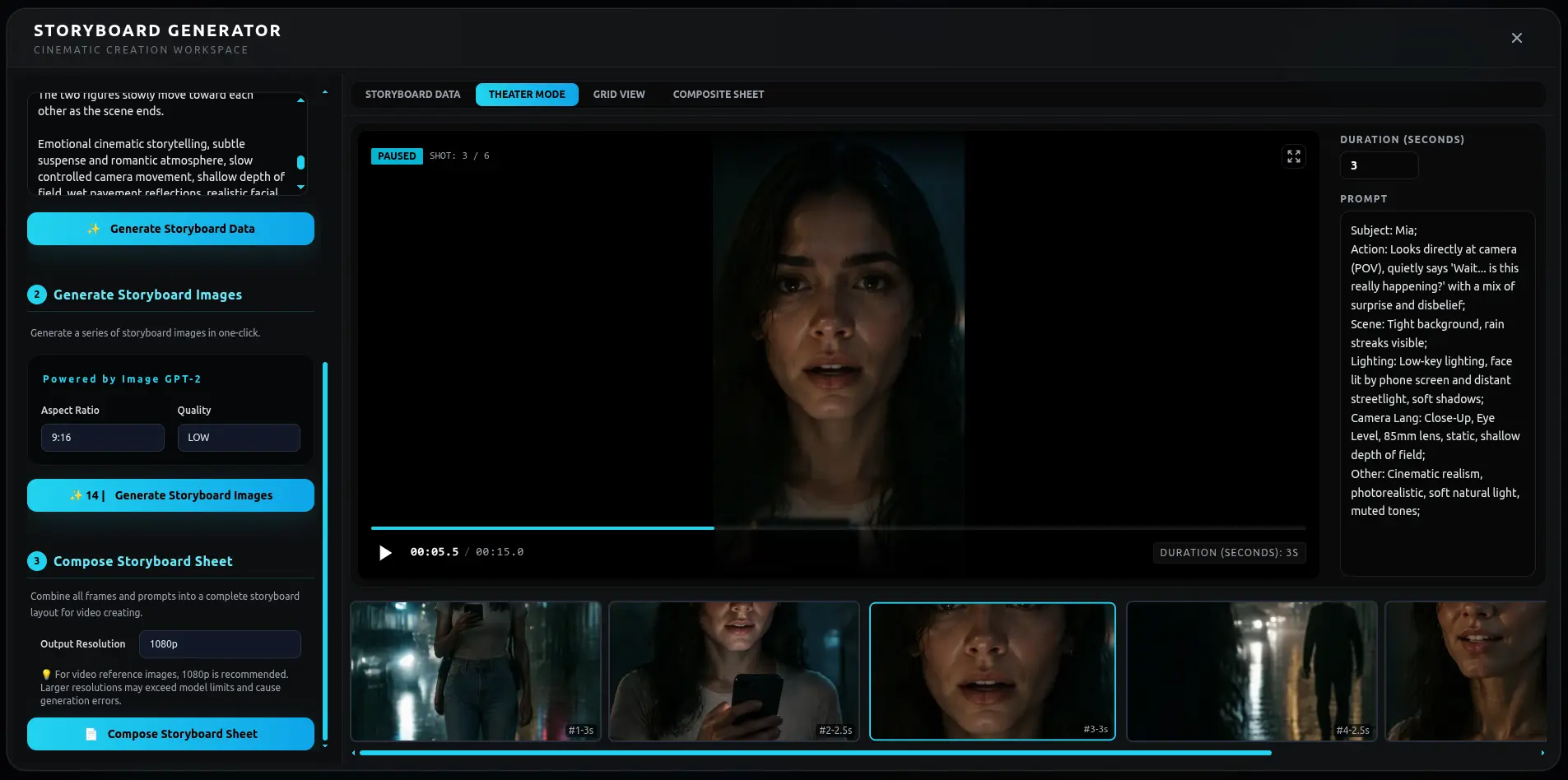
How to Make Storyboards with AI
TikFilmer AI Storyboard Generator: All-in-One Storyboarding Solution