Autopilot and Canvas in an AI Film Maker Workflow

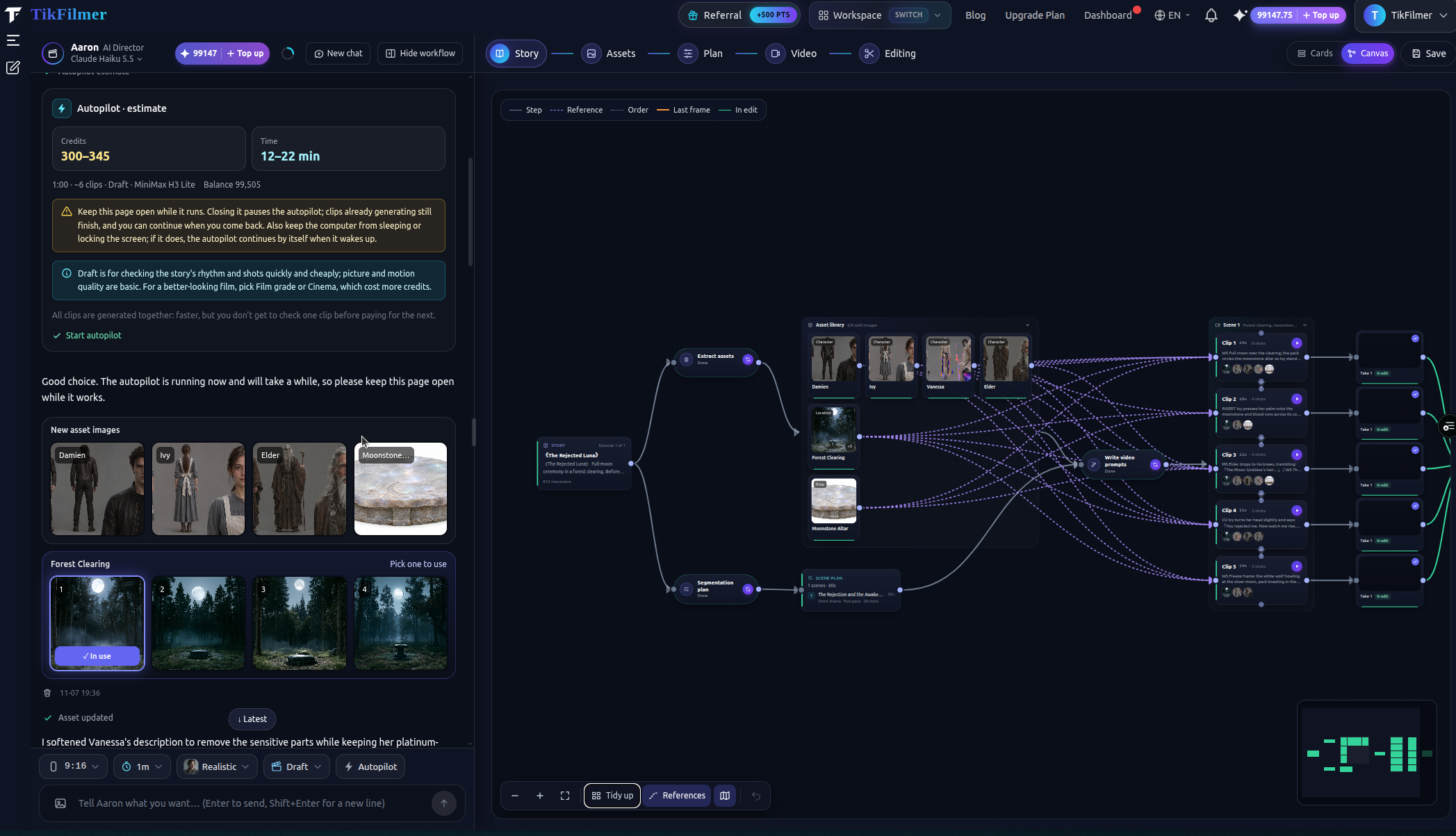
The same TikFilmer project can be driven two ways, and looked at two ways. Autopilot runs a story-to-movie pass after you confirm an estimate. Cards and Canvas are two views of the work, not two projects. This note is about when each one helps.
If you want the order of stages first, start with how to make an AI movie. The path itself is the story to movie workflow.
When Fully automatic is the right pass
Turn on Autopilot, the Fully automatic switch beside the homepage composer, when three things are true. You already know the story, or you have one sentence you are willing to let the AI draft. You want a rough cut without stopping to approve every paid step. And you can leave the page open while it runs.
A one-line idea is written into a story and shown to you before the estimate. A full script or a long story goes straight to the estimate. A story longer than about ten minutes is split into episodes first. Pasted text is used as written.
The estimate card shows a credit range, with room included for repairs, a time range, the length, the number of segments, the tier and your balance. It also asks you to keep the page open. From there you can start, make only the first stretch, switch to Draft, or stay step by step. If the balance is short, it recommends a shorter first part and a way to add credits. Nothing in that pass is spent until you confirm.
After you confirm, the pass is story, asset extraction, asset images, the shot plan, video prompts, video and the editor. Video runs in waves, and a clip that must start from the previous last frame waits for that frame. Every paid step passes a budget gate.
Common failures are repaired without a new decision from you. A blocked asset image is rewritten and generated again. A realistic face that a video model rejects can drop the last frame or switch to a half-face line sketch. A content or copyright block rewrites the prompt. A timeout is retried. When those retries are used up, the shot is skipped and written into the end report. That is a finite repair, not an open-ended one, and it is not a promise that the first pass is the film you will keep.
Closing the page pauses Autopilot. Coming back offers a continue card. Clips that were already generating can still finish. If you edit the workflow by hand, the current step finishes, then Autopilot pauses and tells you. You can also pause it yourself and resume later.
When to stay step by step
Stay step by step when the judgment is the work. You want to see the cast before any video credit is spent. You are changing the shot plan of one scene and leaving the others. You are learning where a story usually breaks, which is often between the asset images and the shot plan.
The estimate card includes that choice on purpose: no Autopilot, one stage at a time. The pipeline does not change. You are the person who confirms each stage. New accounts still start with 350 free credits, and those credits are spent the same way whether a person or Autopilot presses the next step.
When Cards are the clearer view
Cards are the step-by-step editor. Use them when you are inside one thing: the story text, one character's reference, one shot's prompt, one take. The card is the form you fill in. It is the right view when you already know which step is wrong and you want to fix that step, not the map around it.
When Canvas is the clearer view
Switch to Canvas when the question is how the stages connect. The node graph shows the production in order, including what can run together. Story leads to asset extraction and the segment plan side by side. Those two meet again when the video prompts are written. After that come shots grouped by scene, the takes, and the rough cut.
Lines you draw are the same fields the cards already edit. An asset can be a shot's reference image. A shot can join the next one by its last frame. A take can sit on the timeline. Those edits can be undone. Running a tool from a node still asks you to confirm the cost. On a phone, the node's detail opens in a bottom drawer.
Double-click a node, or choose Edit in cards, to return to that card. You have not left the project. Cards and Canvas are two views of one data model.
What neither control does
Autopilot does not run the upscaler, and Canvas does not either. Upscaling and video editing are available as their own tools after you have a clip you want to keep. Switching views does not duplicate the project, and leaving Autopilot on does not make the pass free. You still confirm the estimate, and a budget gate can stop the run.
If the decision in front of you is pacing and coverage, read a cinematic AI film workflow before you confirm a full Autopilot pass. Autopilot follows the shot plan it is given.
Paste a script or a sentence on the homepage and turn Autopilot on if the estimate is the decision you want first. Open the project in Canvas when the continuity between shots is the decision. The stages those controls run are described on story to movie.
Questions
What is Autopilot on TikFilmer? Autopilot is the Fully automatic switch beside the homepage composer. After you confirm an estimate of credits and time, TikFilmer can run the story-to-movie pipeline through a rough cut, with pauses if the budget gate trips or a repair needs you.
What is the Cards / Canvas switch? It toggles how you view the same project: cards for step-by-step editing, or a node canvas for the production graph. Edits stay on one data model.
More articles
View all articles →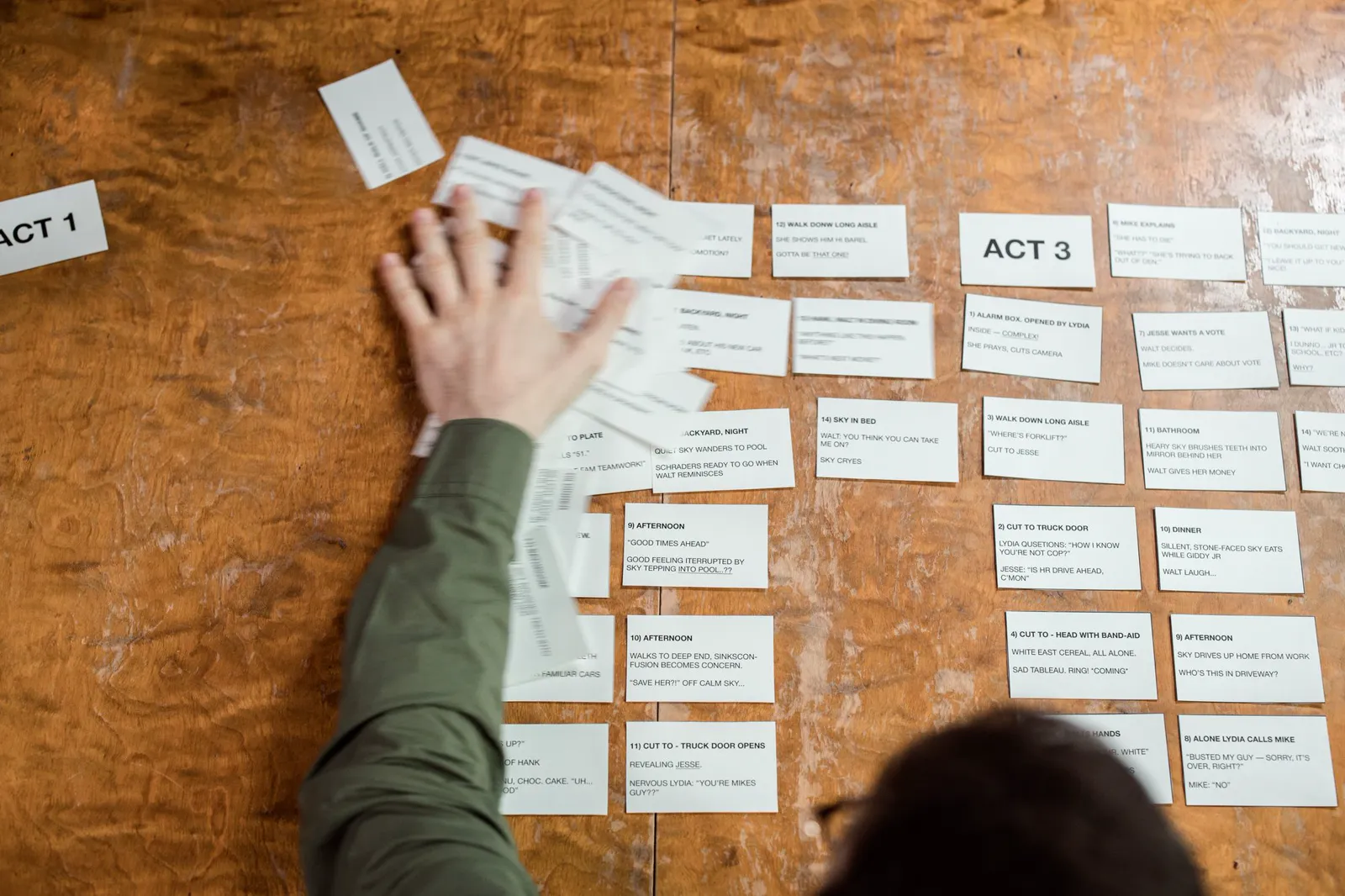
Make a Movie with AI
A first film with AI: start from a story or one sentence, keep the cast from drifting, give neighboring scenes different pacing, then reach a rough cut with Autopilot or Cards and Canvas.
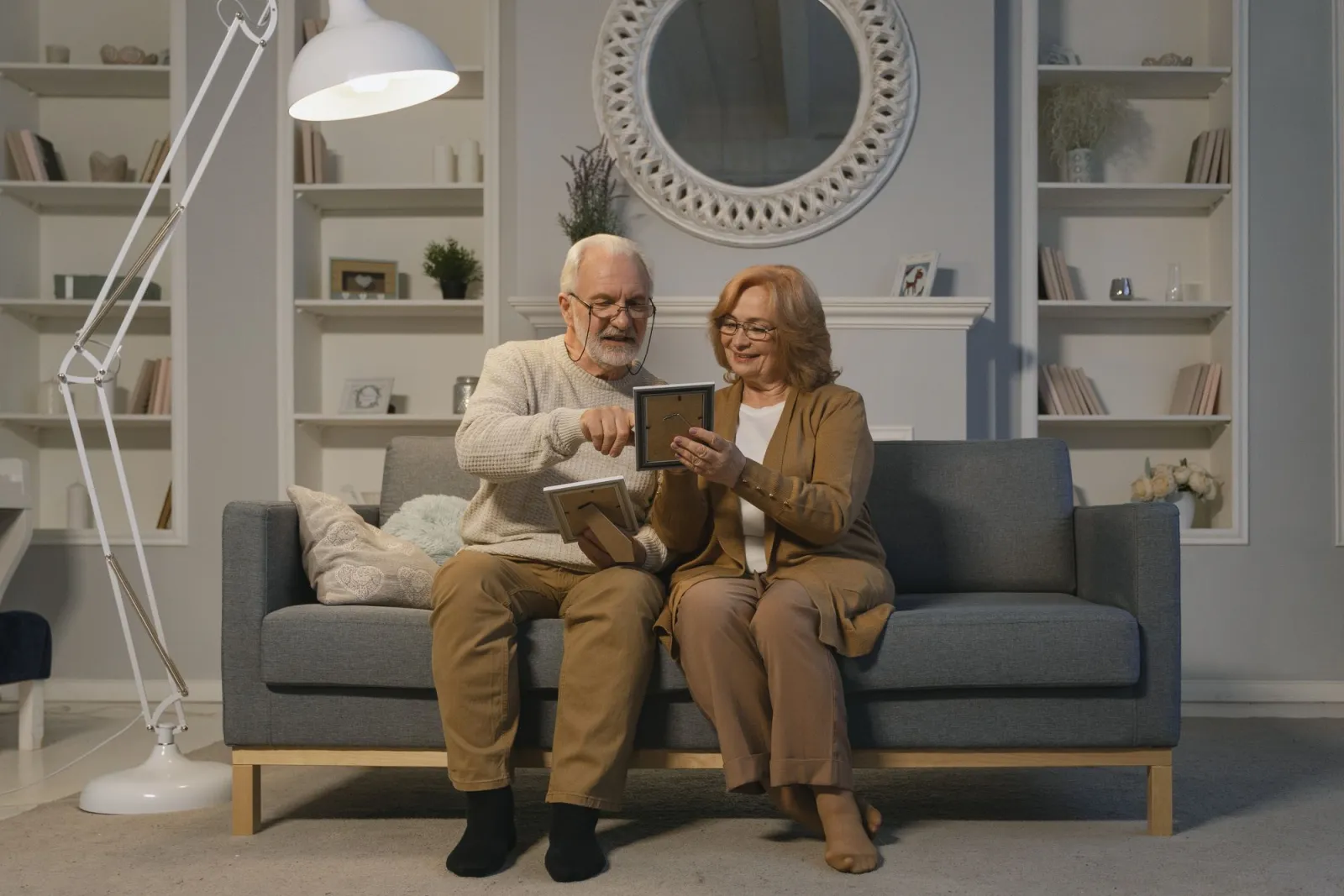
Turn a Family Story Into a Movie With AI
A birthday, an anniversary, or a short memoir: paste the words, plan the beats, then take a first cut with Autopilot or repair one beat in Cards and Canvas.
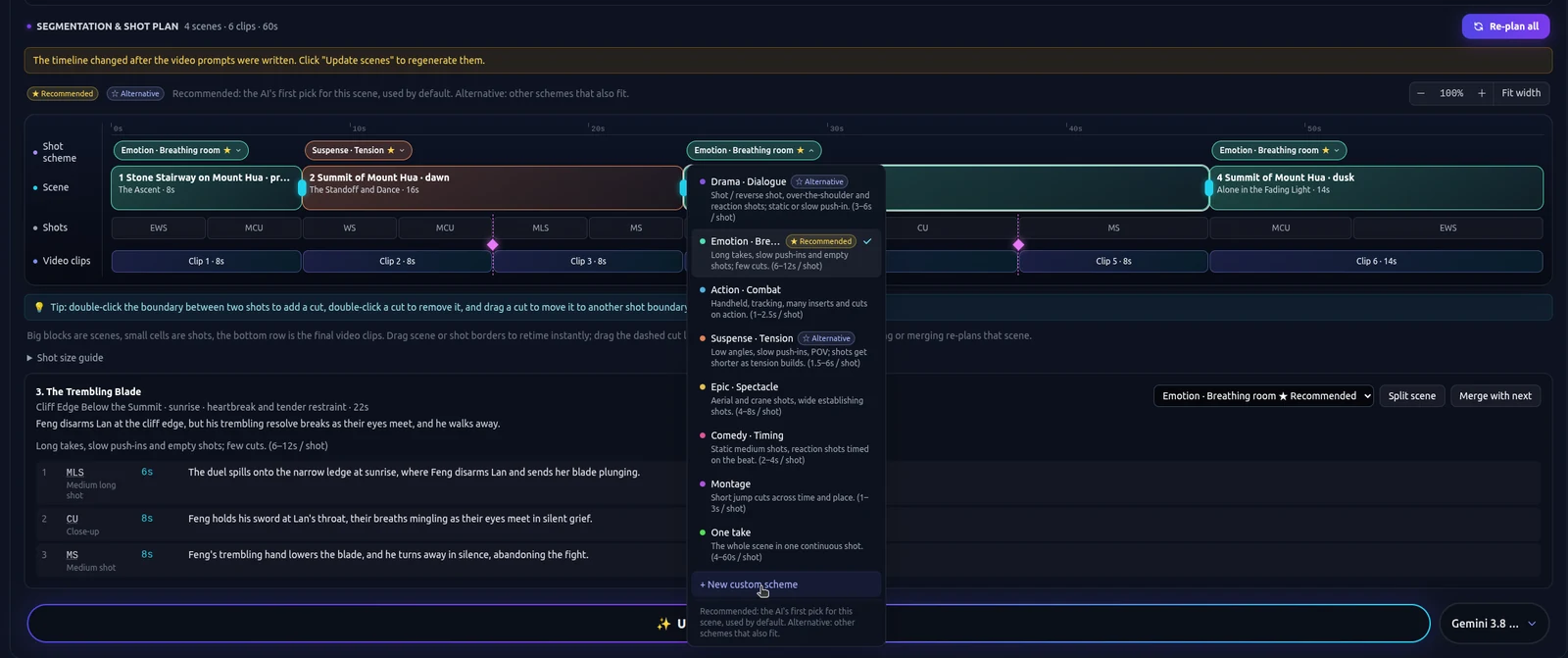
A Cinematic AI Film Workflow
Rhythm for an AI short: story beats, coverage, and a different shot plan for a tense segment than for one that should hold. The beginner how-to is a separate page.
How to Make an AI Movie
The order of work for an AI movie: a story you paste or draft, assets, a shot plan, clips and a rough cut, plus when Autopilot or Cards and Canvas is the better way through it.