How to Make an AI Movie

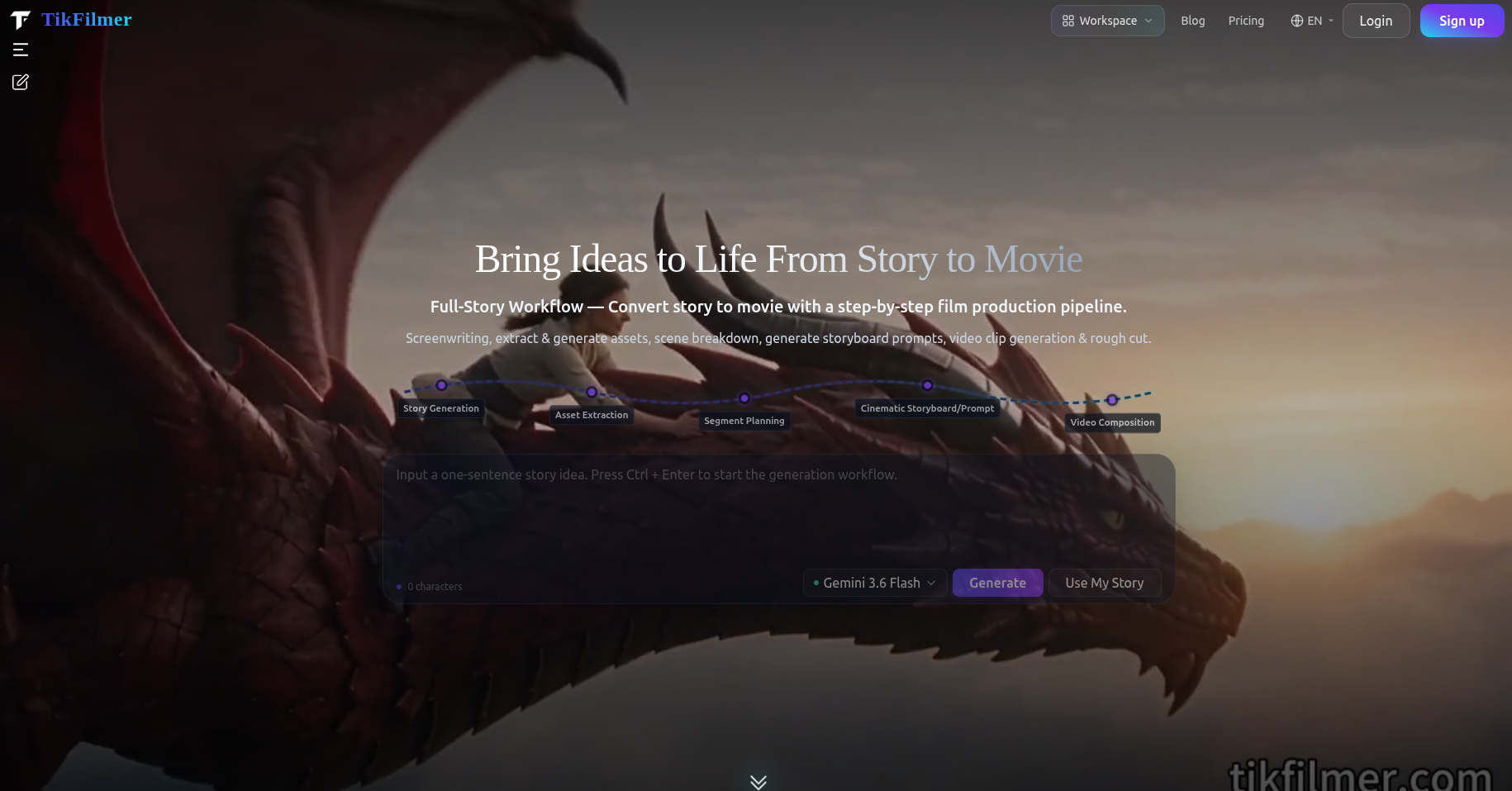
An AI movie, in the sense that matters for a finished film, is a short story that survives the cut. It has a beginning, a turn and an ending, a cast that still looks like itself, and a rhythm that is allowed to change. A single generated clip can be beautiful. It is not the movie.
TikFilmer is an AI film maker built for that longer path. You paste your own script or start from one sentence. The workflow then keeps characters, locations and props in one library, plans shots, renders clips and hands you a rough cut. If you want the first-time path, from a story you already have to a rough cut you can watch, start with make a movie with AI. This page stays the order of work. The product page for the same path is story to movie.
Start from words you already trust
Paste a short story, a screenplay, an outline or a few paragraphs. Pasted text is used as written. If you only have a premise, type one sentence with a genre, a person and a problem. A generated story defaults to about a minute and a half unless you ask for another length. A story longer than about ten minutes is split into episodes before a full pass.
Write the beats in order before you spend a video credit. A page is enough. Include the beat that should be quiet. The rest of the workflow is there to stop the generator from giving every beat the same length.
Five stages, in this order
- Story. The text the rest of the project reads. Edit it until a stranger could say what changes.
- Assets. Characters, locations and props, each with a reference image. That library is what keeps a face and a room from drifting between clips.
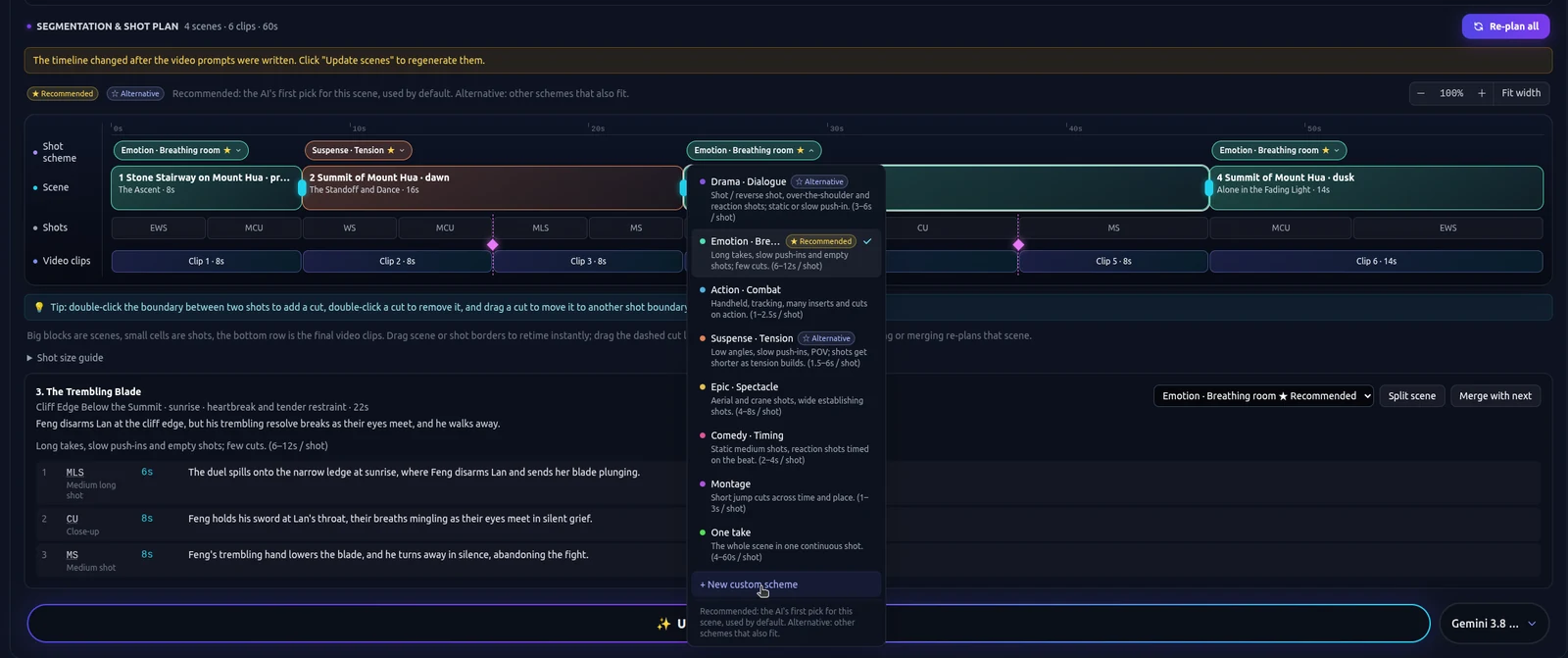
- Shot plan. The story is split into narrative segments. You choose the pacing of each one. Prompts carry shot size, camera movement and timing.
- Video. Each segment renders with the model you picked, guided by the references and the continuity notes, including when a cut should start from the previous clip's last frame.
- Rough cut. Trim and stitch on the timeline. Export one MP4, the separate clips, or a Premiere Pro project.
The upscaler and the video editor are available when you want them. They are separate tools. The shot plan does not run the upscaler for you. New accounts start with 350 free credits, which is enough to learn whether the segments are right before you chase coverage.
Use Autopilot for a full pass, Cards or Canvas to inspect continuity
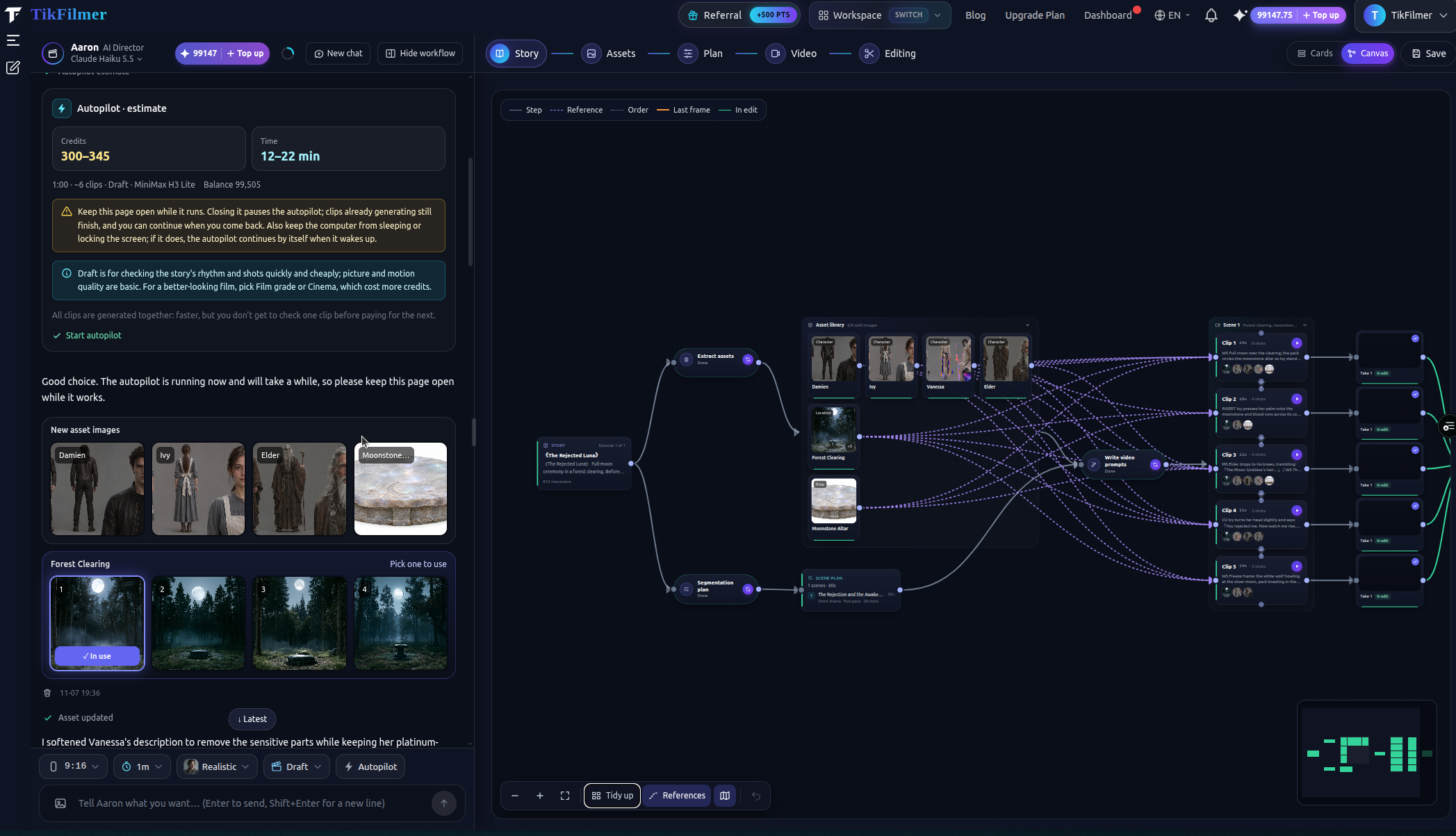
Use Autopilot when you want an estimate-first full pass. The Fully automatic switch sits next to the homepage composer and is labeled Autopilot. TikFilmer shows a credit range and a time range before anything in that pass is spent. After you confirm, it can run story, assets, the shot plan, video and a rough cut, with a budget gate on each paid step and automatic repair for common failures. Keep the page open while it runs. Closing the page pauses it, and you can resume when you come back. If the budget gate trips, or a repair needs you, it pauses. It does not promise a finished film on the first try. When a repair is used up, that shot can be skipped and written into the end report.
Stay step by step when you want to approve the cast, or one scene's shot plan, before the next credit is spent. That is the same pipeline. You are simply the person who presses each stage.
Use Cards or Canvas when you want to inspect shot continuity. Cards are the step-by-step editor. Canvas is a node view of the same project: serial and parallel stages, links from assets to shots, last-frame joins, and takes on the timeline. Double-click a node to edit it as a card again. Nothing is copied into a second project. Edits stay on one data model.
A longer note on when each choice helps is Autopilot and Canvas in an AI film maker workflow.
Make the first one smaller than the one you want
One location. Two people. Four or five segments. Paste that text, or one sentence if you do not have the page yet. Let the workflow propose the split, then change it until it matches the beats you wrote. Generate the reference images before the video. Then render.
If the faces drift, you have a reference problem. If the faces match and the film feels the same all the way through, you have a pacing problem. More generation will not fix the second one. Change the shot plan for the quiet beat and render that segment again.
Open the story to movie workflow and run the words through to a rough cut. The composer, including Autopilot, is on the AI film maker homepage.
This page is the beginner order. A birthday, an anniversary, or a short memoir is a family story turned into a movie. Coverage and a change of pace, once the order is familiar, is a cinematic AI film workflow.
More articles
View all articles →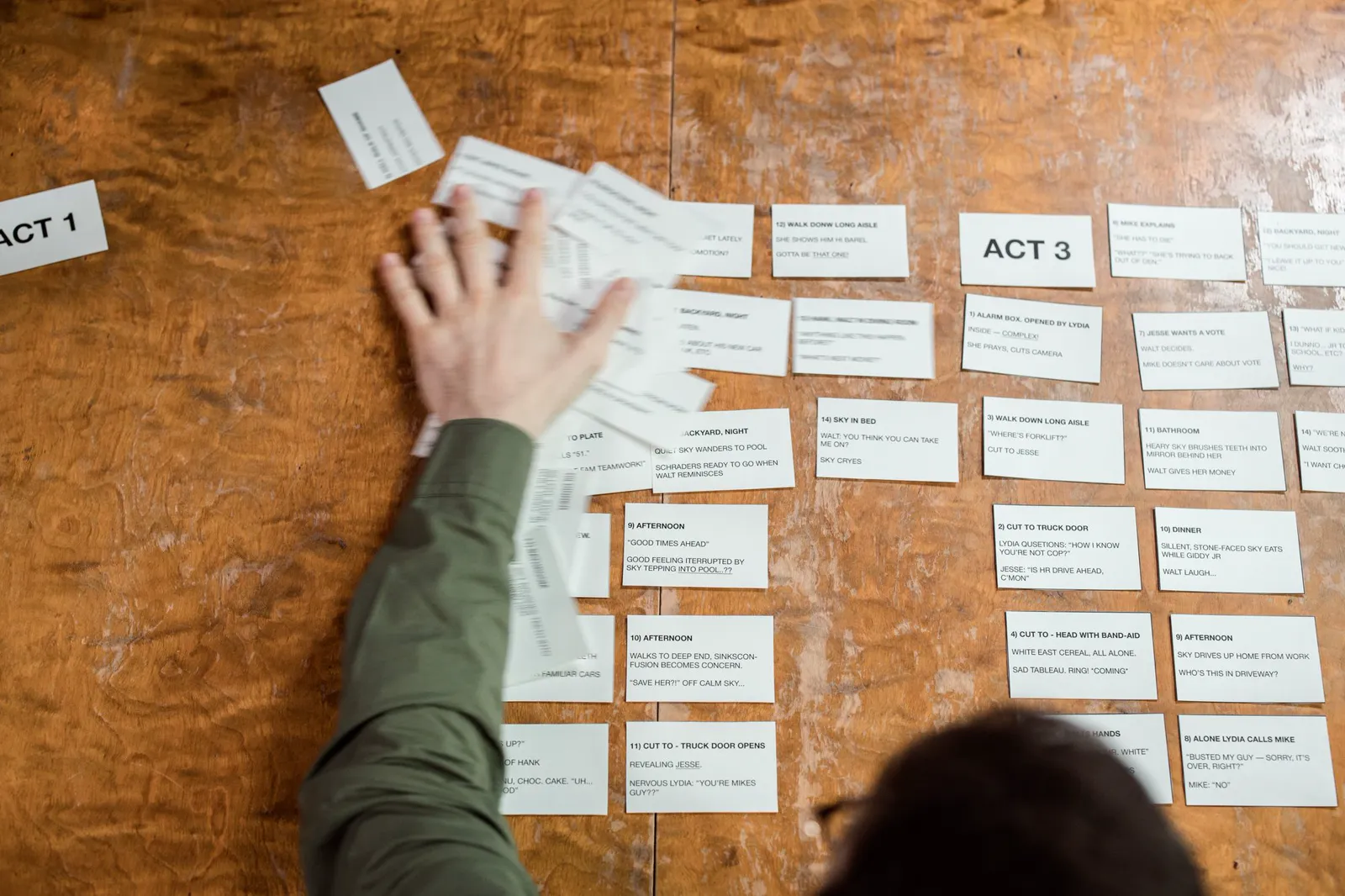
Make a Movie with AI
A first film with AI: start from a story or one sentence, keep the cast from drifting, give neighboring scenes different pacing, then reach a rough cut with Autopilot or Cards and Canvas.
Turn a Family Story Into a Movie With AI
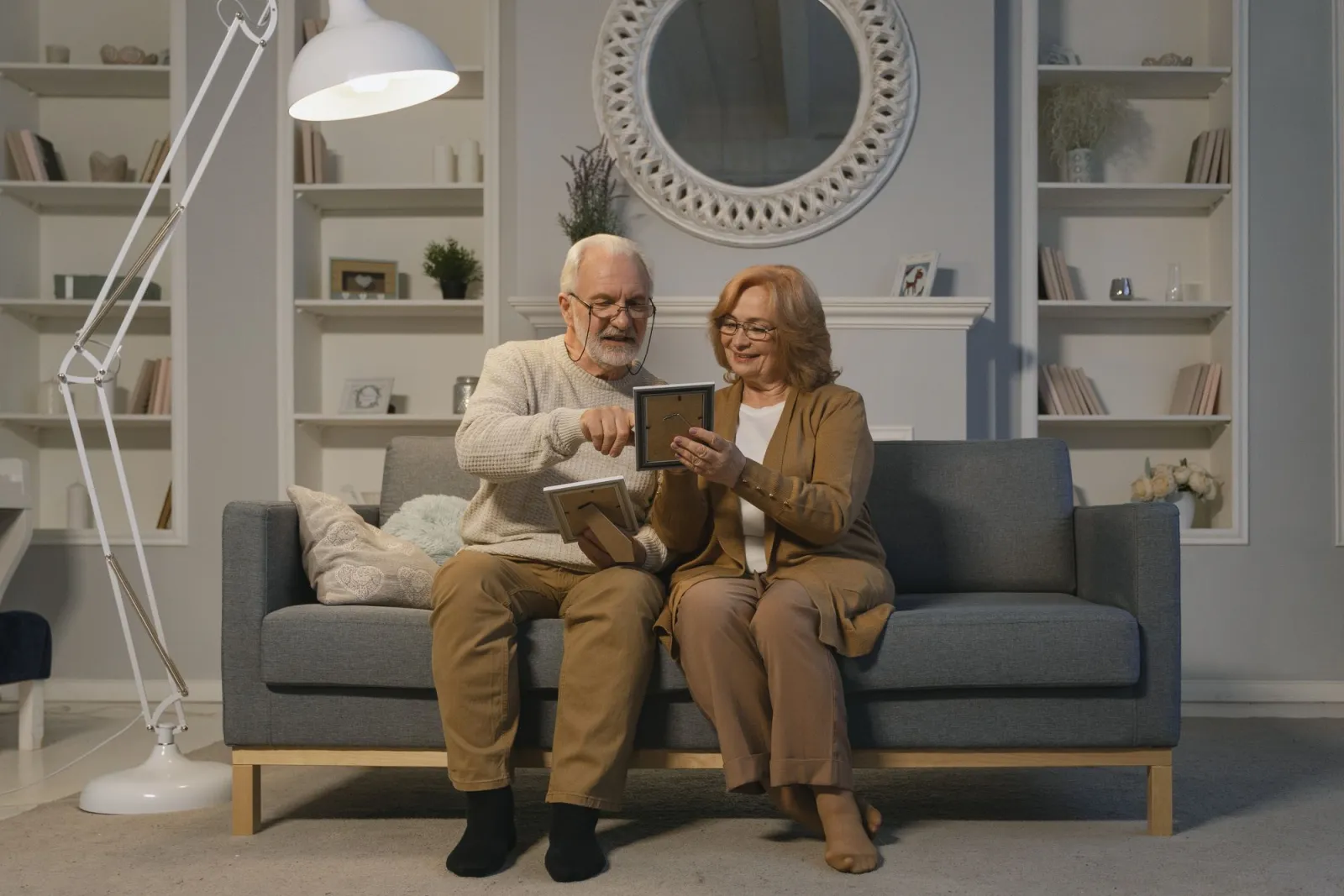
A birthday, an anniversary, or a short memoir: paste the words, plan the beats, then take a first cut with Autopilot or repair one beat in Cards and Canvas.
A Cinematic AI Film Workflow
Rhythm for an AI short: story beats, coverage, and a different shot plan for a tense segment than for one that should hold. The beginner how-to is a separate page.
Autopilot and Canvas in an AI Film Maker Workflow
When to let Fully automatic run an estimate-first pass, when to stay step by step, and when Cards or Canvas makes the same project easier to read.